Mastering Modern Calligraphy with Cola Brush for Procreate 5 and Above
Digital lettering has transformed from a niche hobby into a vital skill for designers, marketers, and content creators. Whether you are designing wedding stationery, crafting social media quotes, or building a brand logo, the right tools can make the difference between amateurish text and professional typography. This is where Cola Brush for Procreate 5 and Above enters the conversation. It is not just another asset in your digital library; it is a hand-drawn tool designed specifically to bring elegance and fluidity to modern calligraphy.
However, owning a high-quality brush set does not automatically guarantee stunning results. Many users stumble not because of a lack of talent, but due to fundamental misunderstandings about how digital brushes interact with hardware and software. To truly leverage the potential of this tool, you must navigate common pitfalls regarding compatibility, technique, and application.
The Compatibility Trap: Hardware Matters More Than You Think
The most frequent mistake beginners make is assuming that any stylus or tablet will suffice for pressure-sensitive calligraphy. Let’s be clear: Cola Brush for Procreate 5 and Above is engineered to respond to the nuanced pressure variations of the Apple Pencil on an iPad Pro. It is not suitable for Photoshop, desktop computers, or Android tablets.
Why does this matter? Calligraphy relies entirely on the relationship between pressure and line weight. When you press harder, the stroke thickens; when you lighten your touch, it thins. If you attempt to use this brush with a capacitive stylus that lacks pressure sensitivity, or on a device that does not support Procreate’s full feature set, you will lose the dynamic range that makes the brush effective. The result is flat, uniform lines that lack the organic feel of hand-lettering.
The Fix: Before purchasing or downloading, verify your setup. You need an iPad Pro and an Apple Pencil. If you are using an older iPad model or a third-party stylus, test its pressure sensitivity in a basic sketch app first. If the line weight does not change as you vary your pressure, this brush set will not perform as intended. Investing in the correct hardware is not an upsell; it is a requirement for the tool to function.
Misunderstanding "Hand-Drawn" Dynamics
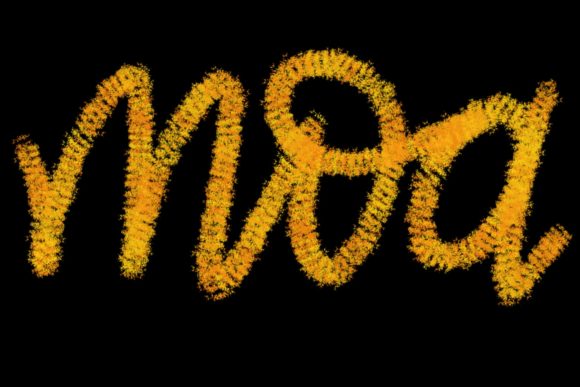
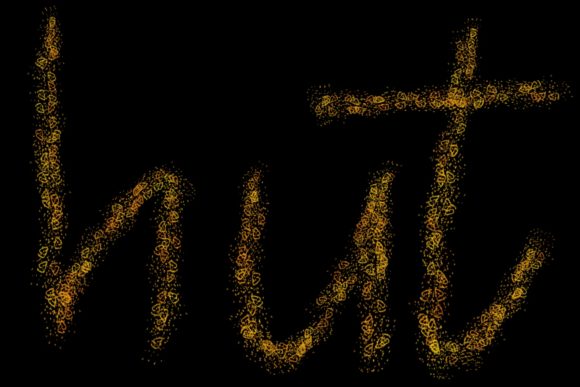
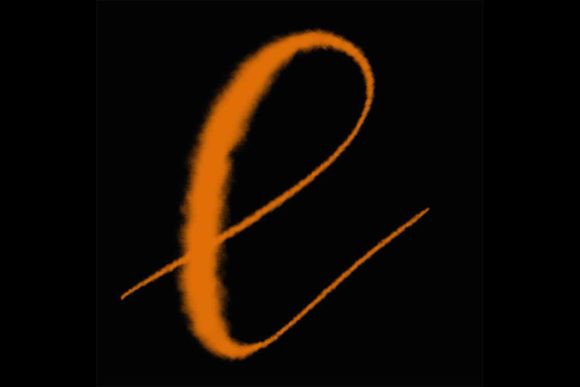
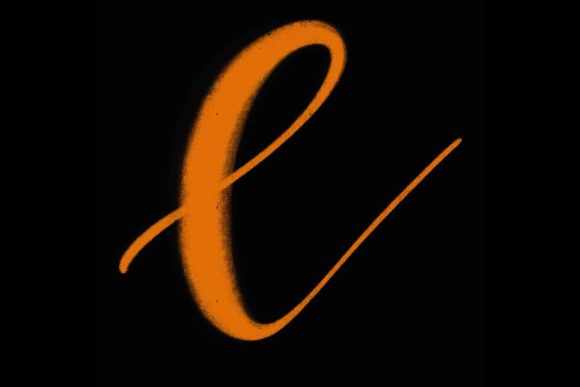
Another common oversight is treating digital brushes like static stamps. Some users expect every stroke to look identical, regardless of angle or speed. However, Cola Brush for Procreate 5 and Above is hand-drawn and designed to mimic the imperfections and textures of real ink on paper. This means it has built-in texture and variability.
If you move too quickly or hold the Apple Pencil at an extreme angle, you might encounter unexpected breaks in the stroke or inconsistent opacity. This is not a bug; it is a feature designed to create authentic, elegant letters. Users who fight against this texture often end up over-editing their work, smoothing out the very characteristics that give the lettering its charm.
Better Approach: Slow down. Practice controlling your speed and angle. Use the brush for its intended purpose: creating flow and rhythm. Instead of trying to force a perfect geometric line, embrace the slight variations. These nuances are what make your greeting cards and quote designs feel personal and high-end rather than computer-generated.
Overlooking the Versatility Beyond Script
Many creators pigeonhole calligraphy brushes into strict "cursive" categories. While Cola Brush for Procreate 5 and Above excels at modern calligraphy, limiting it to script work is a missed opportunity. This brush set is versatile enough to handle various graphic design tasks, including logos, headers, and decorative elements for home workspace decor.
A frequent error is using the brush at full opacity for large-scale graphics, which can look heavy and cluttered. Conversely, using it without adjusting the size for small details can make text illegible. The key is context. A wedding invitation requires delicate, thin strokes, while a bold poster headline might benefit from thicker, more assertive lines.
Practical Advice: Experiment with opacity and flow settings within Procreate. For subtle background elements in your workspace art, lower the opacity to create a watermark effect. For bold logos, increase the size and use steady, confident strokes. Remember, this tool is designed to jazz up your visual projects, so think beyond traditional lettering. Use it to add flair to digital planners, social media templates, and even product packaging mockups.
Ignoring the Learning Curve of Digital Ink
Transitioning from physical pen and paper to a glass screen presents a unique challenge: friction. The smooth surface of an iPad can feel slippery compared to toothy paper, leading to shaky lines and poor control. Users often blame the brush for their instability, when the issue is actually their adaptation to the medium.
This lack of adaptation affects efficiency and quality. You may spend hours correcting wobbly lines instead of focusing on composition and design. This frustration can lead to abandoning the tool prematurely, assuming it is too difficult to master.
The Solution: Utilize Procreate’s streamline features. Streamline adds a slight delay to your stroke, smoothing out jitters and helping you achieve those elegant curves associated with professional calligraphy. Start with a moderate streamline setting and adjust as you gain confidence. Additionally, consider using a matte screen protector to add some resistance, mimicking the feel of paper. This simple adjustment can significantly improve your control over the Cola Brush for Procreate 5 and Above.
Evaluating Your Needs Before Commitment
Before integrating this brush into your workflow, ask yourself what you aim to create. Are you designing intricate wedding stationary? Do you need quick, stylish quotes for Instagram? Or are you looking to add a personal touch to your home office decor? Understanding your end goal helps you determine if this specific brush set aligns with your style.
If your work leans towards rigid, geometric sans-serif typography, this hand-drawn calligraphy brush may not be the best fit. However, if you value organic, flowing, and human-centric design elements, it is an excellent choice. Always review sample works created with the brush to ensure its aesthetic matches your brand or personal style.
In conclusion, Cola Brush for Procreate 5 and Above is a powerful tool for anyone looking to elevate their digital lettering. By ensuring you have the correct hardware, respecting the brush’s hand-drawn nature, and adapting your technique to the digital medium, you can avoid common frustrations. Take the time to learn the tool, experiment with its versatility, and let it enhance your creative projects with elegance and precision.