Transform Photos Into Art With the Ink Pen Photoshop Action
There is a specific kind of charm to hand-drawn illustrations that digital photography often struggles to replicate. The jagged edges, the deliberate shading, and the organic flow of ink on paper convey a sense of humanity and craftsmanship. For years, achieving this look required significant artistic skill or hours of manual labor in photo editing software. You had to trace lines, select brushes, and meticulously adjust opacity levels. However, the Ink Pen Photoshop Action has changed the workflow entirely, offering a bridge between high-resolution photography and classic sketching aesthetics without the steep learning curve.
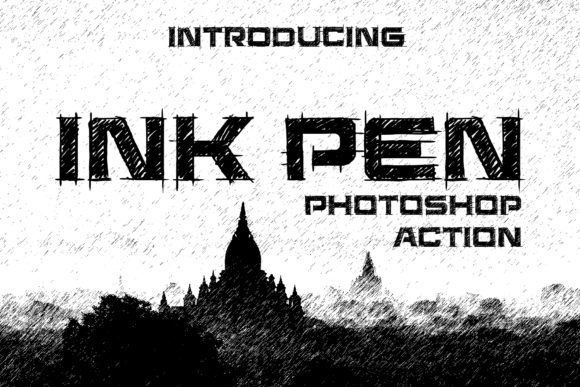
This tool is not just a filter; it is an automated workflow designed to interpret the light and shadow of your image and translate them into angled pen strokes. The result is an incredibly realistic pen drawing sketching effect that retains the structural integrity of the original photo while imposing a distinct artistic style. What makes this particularly appealing to modern creators is the efficiency. With just one click, you can generate artistic effects suitable for organic packaging, storyboard layouts, web art, social media content, and more. There are no complex brush settings to memorize and no custom backgrounds to source. It is a streamlined solution for those who need professional-grade visual assets quickly.
Why One-Click Solutions Matter for Modern Creators
In today’s fast-paced digital landscape, time is often as valuable as talent. Freelancers, small business owners, and marketers frequently find themselves wearing multiple hats. A graphic designer might also be handling social media management, while an entrepreneur might be designing their own product labels. In these scenarios, spending three hours manually sketching a product photo is rarely feasible. The Ink Pen Photoshop Action addresses this bottleneck by automating the tedious parts of the creative process.
The beauty of this action lies in its simplicity. You do not need to be a master illustrator to produce work that looks like it came from a sketchbook. By loading the action into Photoshop and hitting play, the software analyzes the tonal values of your image. It then applies a series of non-destructive layers that mimic the behavior of a real ink pen. The final result features beautiful shading and directional strokes that give the image depth and texture. This allows users to focus on the conceptual side of their projects—such as composition, messaging, and brand identity—rather than getting bogged down in technical execution.
Real-World Applications Across Industries
The versatility of the ink sketch effect means it can be applied across a wide variety of industries. Here is how different professionals can leverage this tool to enhance their output.
E-Commerce and Product Packaging
For brands focusing on organic, artisanal, or handmade products, packaging design plays a crucial role in communicating value. A highly polished, glossy photograph might feel too corporate for a small-batch soap company or a local coffee roaster. Using the Ink Pen Photoshop Action, these businesses can convert product photos into elegant sketches. This aesthetic suggests craftsmanship and attention to detail. Imagine a label for a herbal tea blend featuring a sketched illustration of the ingredients rather than a standard stock photo. The effect creates a warm, approachable vibe that resonates with consumers looking for authenticity.
Social Media and Content Marketing
Social media feeds are saturated with high-definition images. To stand out, creators often need to break the visual monotony. An ink sketch effect provides a striking contrast that stops the scroll. Bloggers and influencers can use this technique to create unique header images for their posts or to highlight specific products in a lifestyle shot. Because the effect is generated quickly, it allows for consistent branding. You can maintain a cohesive "sketchbook" theme across your Instagram grid or Pinterest boards without needing to hire an illustrator for every single post.
Architecture and Interior Design
Architects and interior designers often use sketches in the early stages of client presentations to convey concepts without getting bogged down in photorealistic details. However, creating these sketches manually takes time. By applying the Ink Pen Photoshop Action to 3D renders or site photographs, professionals can produce presentation-ready visuals that look like conceptual drawings. This helps clients focus on the spatial relationships and design intent rather than distracting textures. It is an excellent way to bridge the gap between technical blueprints and emotional appeal.
Education and Storyboarding
Educators and instructional designers can use sketch effects to create engaging visual aids. Diagrams and historical photos converted into ink sketches can feel less intimidating and more inviting to students. Similarly, filmmakers and animators rely on storyboards to plan scenes. While traditional storyboarding is done by hand, using this action on reference photos can speed up the pre-visualization process. It allows directors to quickly iterate on lighting and composition ideas before committing to full production.
How to Use the Action Effectively
Getting started with the Ink Pen Photoshop Action is straightforward, but understanding the nuances can help you achieve the best results. The process is designed to be user-friendly, even for those who are not Photoshop experts.
- Load the Action: Once you have downloaded the file, open Photoshop and navigate to the Actions panel. You can usually load the action by selecting "Load Actions" from the panel menu and choosing the downloaded file.
- Prepare Your Image: While the action works on most images, starting with a high-contrast photo yields the best results. Ensure your subject is well-lit and distinct from the background.
- Execute the Action: Select the layer containing your image, find the Ink Pen effect in the actions list, and hit play. The software will automatically run through a series of steps.
- Review and Adjust: Voila! The final result is a Pen Sketch effect with angled pen strokes and beautiful shading. Because the action uses non-destructive layers, you can tweak the opacity or blend modes if you want to soften the effect or blend it with the original photo.
It is important to note that while the action is automated, the quality of the input affects the quality of the output. Images with clear subjects and good lighting will produce cleaner, more defined sketches. Busy or low-contrast images may result in a muddier appearance. Experimenting with different source photos is the best way to understand how the algorithm interprets various textures and tones.
Considerations Before You Begin
Before integrating this tool into your workflow, there are a few practical considerations to keep in mind. First, ensure you have Adobe Photoshop installed, as this action is specifically designed for that environment. It is not a standalone app, so it requires the host software to function.
Second, think about your brand consistency. While the ink sketch effect is visually striking, it may not suit every project. Corporate reports or high-tech product launches might require a cleaner, more modern aesthetic. Reserve this tool for projects where warmth, nostalgia, or artistic flair is appropriate.
Finally, consider the resolution of your final output. If you are designing for large-format printing, such as billboards or trade show banners, ensure your source image is high enough resolution to withstand the processing. The action preserves detail, but it cannot create resolution that isn't there. For web and social media use, standard high-quality JPEGs or PNGs are typically sufficient.
The Ink Pen Photoshop Action represents a smart intersection of technology and artistry. It democratizes access to a classic visual style, allowing anyone with a computer to produce compelling, hand-drawn-style imagery. Whether you are packaging a new product, planning a film scene, or simply trying to make your blog stand out, this tool offers a reliable, efficient, and aesthetically pleasing solution. By removing the technical barriers to entry, it frees you to focus on what truly matters: telling your story through compelling visuals.